Agency workflow
One guide for the team document flow Start from agency setup, move through CV creation, then finish with forms and official letterhead from one workflow.Personal builder
Separate guidance for individual CV users Use the personal workspace and builder guides when the user is creating a resume outside the agency dashboard.Direct support
Escalate blocked workflow issues cleanly Account, verification, and activation concerns should still go to support when the guide is not enough.Workflow Guide
How GulfCV Pro works for agency teams
Process Context Agency workspace flow for multiple staff handling candidate records, checking documents, and releasing outputs together.
Agency Team Flow
- Create the agency account, then complete the profile, branding, and footer details that should appear across documents.
- Invite team members only after the main agency profile is ready so staff start from the correct branding and workflow setup.
- Build the candidate CV first, then generate the application form and official letterhead from the same record flow.
- Use plan upgrades when your document volume, theme needs, or team operations grow beyond the current allowance.
What this guide covers
- Agency setup and branding
- Team onboarding and encoder workflow
- CV, application form, and letterhead sequence
- When to move from free to paid agency plans
Module Guide
How to use the CV Builder
Process Context Main candidate profile creation step before the agency moves to forms, printing, and final document release.
English
- Choose the preset, theme, layout, and translation before entering candidate details.
- Complete the required profile fields first, then add work experience, education, and other supporting sections.
- Review the preview page, confirm the spacing looks clean, then use `Save CV Record` before printing or exporting.
Tagalog
- Piliin muna ang preset, theme, layout, at translation bago ilagay ang detalye ng kandidato.
- Unahin ang mahahalagang profile field, pagkatapos ay ilagay ang work experience, education, at iba pang supporting section.
- I-review ang preview page, siguraduhing malinis ang spacing, at pindutin ang `Save CV Record` bago mag-print o mag-export.
Training Guide
How to use Beginner Mode
Process Context Training flow for first-time encoders so they follow the correct order: setup, key fields, photos, then save and print.
English
- Leave the default preset and translation if you are still learning. Change them only when the agency needs a different output.
- Fill the 6 highlighted fields first: Reference No., Post Applied For, Monthly Salary, Candidate Name, Nationality, and Age.
- Add passport photo and full body photo before final release if the partner expects a full candidate presentation.
- Use `Save CV Record` before `Print / Save PDF`. Printing is blocked until the record is saved in History.
Tagalog
- Iwan muna sa default ang preset at translation kung nag-aaral pa lang gumamit. Palitan lang kung may ibang kailangan ang agency.
- Unahin ang 6 na highlighted fields: Reference No., Post Applied For, Monthly Salary, Candidate Name, Nationality, at Age.
- Idagdag ang passport photo at full body photo bago ang final release kung kailangan ng partner ang kumpletong candidate presentation.
- Pindutin muna ang `Save CV Record` bago ang `Print / Save PDF`. Hindi dapat mag-print hangga't hindi pa naka-save sa History ang record.
What the guide means
- `Default ready` means the current top settings are already safe to use.
- `0 / 6 filled` shows how many of the main candidate fields are complete.
- `Optional` on photos means the draft can still be saved, but the packet may not be complete yet.
Quick team reminder
- Use Beginner Mode for new staff or relievers.
- Turn it off for experienced encoders who already know the flow.
- Use the jump buttons in the guide to move directly to the needed section.
Module Guide
How to use the Application Form
Process Context Post-CV documentation step when candidate details are complete and the agency needs a print-ready employment form.
English
- Select the template style, output mode, and print profile first so the preview spacing matches your target output.
- Check the agency header, then fill in reference details, job data, and the candidate personal information.
- Run A4 Check before final print to avoid clipped sections and make sure the page is still easy to write on or read.
Tagalog
- Piliin muna ang template style, output mode, at print profile para tama ang spacing ng preview at final print.
- I-check ang agency header, pagkatapos ay ilagay ang reference details, job data, at personal information ng kandidato.
- Patakbuhin ang A4 Check bago ang final print para maiwasan ang putol na section at masigurong malinis ang output.
Module Guide
How to use the Letterhead
Process Context Official agency correspondence step for endorsements, withdrawals, and formatted partner or candidate letters.
English
- Choose the template pack and print style first, then confirm the agency letterhead details and contact information.
- Apply a document template if needed, then edit the subject, body content, recipient details, and signatory block.
- Use A4 Check before printing so the letter body and signature area remain clean and professional on the page.
Tagalog
- Piliin muna ang template pack at print style, pagkatapos ay i-check ang agency letterhead details at contact information.
- Gumamit ng document template kung kailangan, saka i-edit ang subject, body content, recipient details, at signatory block.
- Patakbuhin ang A4 Check bago mag-print para malinis at propesyonal ang letter body at signature area sa page.
Personal Workflow
How the Personal Workspace works
Process Context Personal user flow for one person managing their own resume setup outside the shared agency dashboard.
English
- Create or sign in to the personal account, then complete the base profile details inside the personal workspace first.
- Set the target role, location, and short summary so the personal builder starts from a stronger profile foundation.
- Use the workspace to open the resume builder or cover letter builder depending on the document you need next.
Tagalog
- Gumawa o mag-sign in sa personal account, pagkatapos ay kumpletuhin muna ang base profile sa personal workspace.
- Ilagay ang target role, location, at maikling summary para mas maayos ang simula ng personal builder.
- Gamitin ang workspace para buksan ang resume builder o cover letter builder depende sa susunod na dokumentong kailangan.
Personal Builder Guide
How to use the Personal CV Builder
Process Context Self-service resume building step for personal users choosing templates, completing sections, and preparing PDF output.
English
- Choose the CV design first, then complete your personal profile, work experience, skills, and other key resume sections.
- Use short, clear job titles and concise bullet points so employers can scan the document faster.
- Preview the resume, adjust the layout if needed, then print or save as PDF from the browser when the content is complete.
Tagalog
- Piliin muna ang CV design, pagkatapos ay kumpletuhin ang personal profile, work experience, skills, at iba pang mahalagang section.
- Gumamit ng malinaw at maikling job titles at bullet points para mas madaling basahin ng employer.
- I-preview ang resume, ayusin ang layout kung kailangan, at saka i-print o i-save as PDF mula sa browser kapag kumpleto na.
Final Output
What a Finished Product Looks Like
Process Context Final QA and submission reference step for checking whether the CV, form, and letterhead are complete and ready.
Sample Output
- CV: All required fields filled, clean layout, agency branding visible, and no placeholder text.
- Application Form: Candidate and job details complete, agency header present, and print preview matches A4.
- Letterhead: Official template, correct signatory, and clear subject/body content.
Preview:
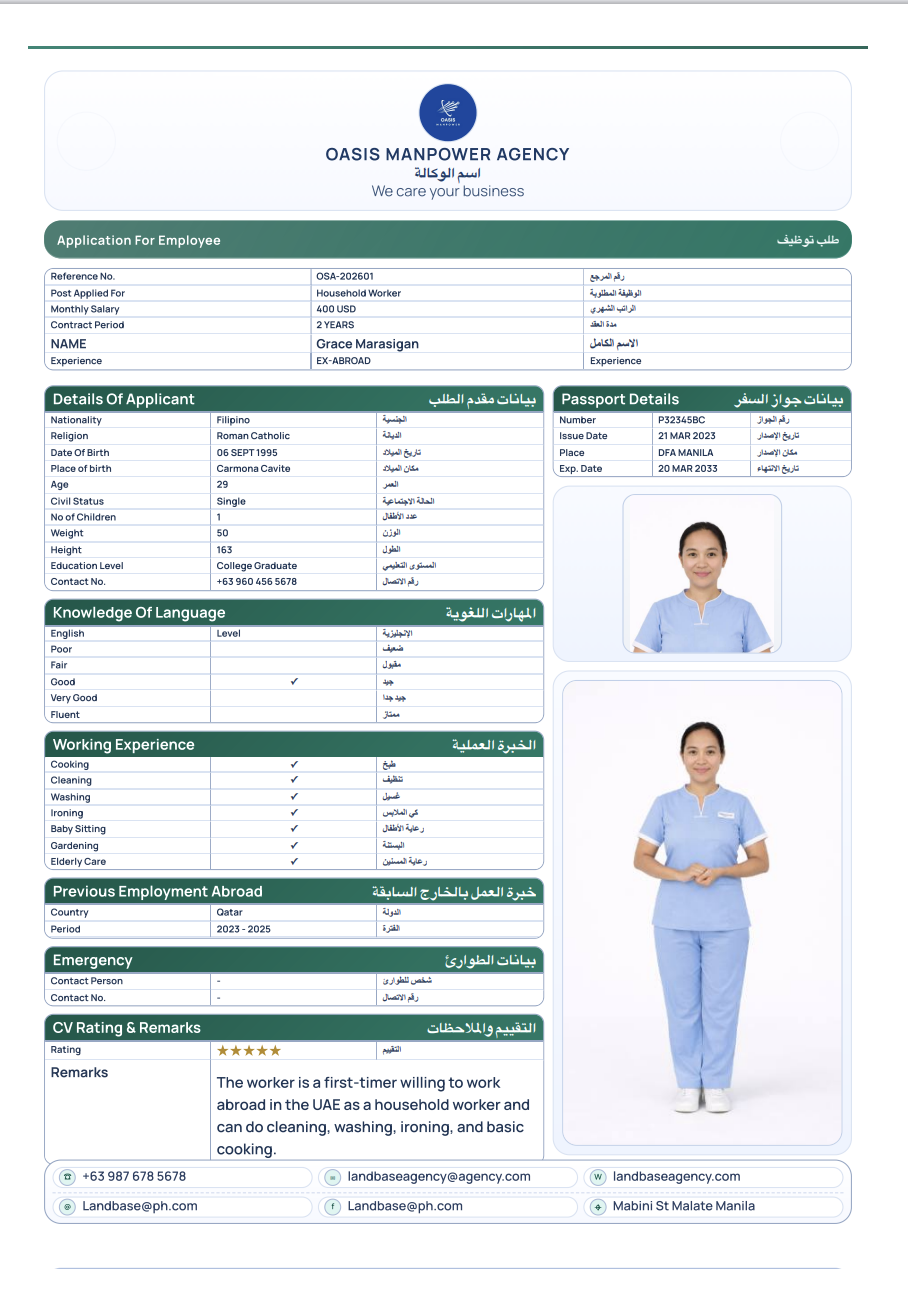
Checklist for a Finished Product
- All candidate and agency fields are complete
- Branding and contact details are correct
- No typos or placeholder text
- Preview matches print output
- Document is ready for partner/client submission
General Tips
Best practices for PH agency teams
Process Context Cross-team workflow standards that keep encoding, checking, saving, and printing consistent for every staff member.
English
- Use one staff process for naming references and saving candidate records.
- Always check the preview before printing, especially after changing themes or templates.
- Store final records in History so the same candidate file can be reopened without retyping.
Tagalog
- Gumamit ng iisang proseso sa paglalagay ng reference at pag-save ng candidate records.
- Laging i-check ang preview bago mag-print, lalo na kapag nagpalit ng theme o template.
- I-save ang final records sa History para hindi na ulit mag-encode ng parehong candidate file.